
GPT Image 1.5 Prompt Mastery: From Basics to Visual Edits
OpenAI has returned to the forefront of AI image generation with GPT Image 1.5. After a period of relative quiet, this new model - often codenamed "Hazelnut" - represents a significant leap forward in precision, editability, and structural reasoning. It's designed not just for "making pictures," but for integrating seamlessly into professional workflows like UI design, infographic creation, and complex photo editing.
This comprehensive guide walks you through what it is, how to write an effective GPT Image 1.5 prompt, and provides a curated list of over 20 prompts you can try immediately.
What is GPT Image 1.5?
GPT Image 1.5 is OpenAI's latest flagship image generation model, built to turn ideas into visuals with speed and unprecedented precision. It distinguishes itself from competitors with three core strengths:
✔️ Reliable Text Rendering: It can generate legible, crisp text inside images - perfect for logos, posters, and infographics.
✔️ Structural Intelligence: It understands complex layouts, logical flows, and multi-step diagrams better than previous models.
✔️ Advanced Editing: It offers robust "in-painting" and editing capabilities, allowing you to change specific elements (like a shirt color) without altering the rest of the image.
Whether you are a marketer needing a quick ad creative, a developer needing a UI mockup, or an educator creating diagrams, GPT Image 1.5 is built to be a dependable "production engine."
How to Write a GPT Image 1.5 Prompt
Writing for GPT Image 1.5 is less about "prompt engineering" magic words and more about clear, structured communication.
1. The Basic Prompt Structure
Start simple. Focus on the subject, action, and key visual cues.
🔑 Template: [Subject] + [Action] + [Location] + [Key Visual Detail]
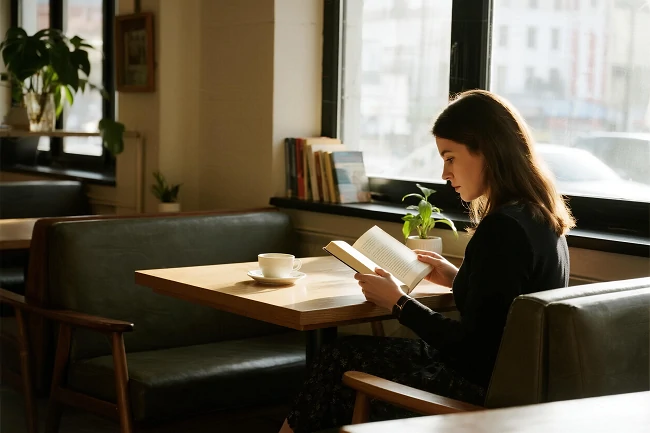
💡 Example: "A woman reading a book in a quiet café, natural daylight, realistic style."
2. The Detailed Prompt Structure
For professional results, expand on technical details like lighting, camera lens, and composition.
🔑 Template: [Subject] + [Environment] + [Action] + [Visual Style] + [Lighting] + [Composition] + [Quality Cues]
💡 Example: "A realistic portrait of a woman reading a book in a quiet café, soft morning light coming through large windows, shallow depth of field, natural skin texture, cinematic color grading, 85mm lens look."
3. Constraints & Invariants
When editing images, tell the model explicitly what NOT to change.
💡 Example: "Change the background to a snowy mountain. Preserve the person's face, pose, and clothing exactly. Do not add new objects."
👉 For a more professional background change tool, please try the AI background changer.
11 Must-Try Prompts for GPT Image 1.5
Here are 11 prompt examples across different scenarios to help you create the results you want based on your specific needs.
1. Infographics & Diagrams
💡 Prompt: "Create a detailed Infographic of the functioning and flow of an automatic coffee machine like a Jura. From bean basket, to grinding, to scale, water tank, boiler, etc. I’d like to understand technically and visually the flow."
2. Photorealistic Candid Shots
💡 Prompt: "A photorealistic candid shot of an experienced mechanic taking a break in a cluttered, sunlit garage. He is wiping grease off his hands with a dirty rag, looking exhausted but content. Extreme focus on skin texture: deep facial lines, pores, sweat beads. Natural light streaming through a dusty window. Shot on 35mm film stock."
3. Minimalist Logo Design
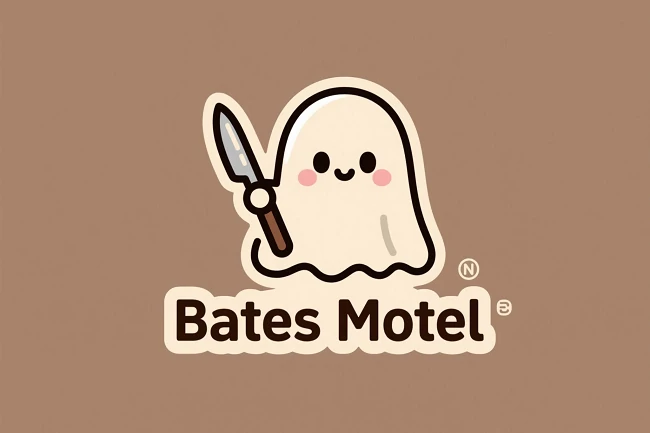
💡 Prompt: "A minimalist vector logo for a hotel named 'Bates Motel'. The design features a cute, round, stylized 'ghost' with simple kawaii anime eyes, holding a butcher knife like a staff. Flat style, clean lines, negative space, warm beige and earthy brown colors."
4. Story to Comic Strip
💡 Prompt: "Vertical 4-panel manga comic strip, Death Note art style. Panel 1: Light Yagami in a suit leaves a room looking arrogant. Panel 2: Close-up on L's face, intense and calculating, holding a sugar cube. Panel 3: L crouches on a desk working furiously. Panel 4: Light stands shocked while L holds up the Death Note book smiling. High contrast black and white shading."
5. High-Fidelity UI Mockup
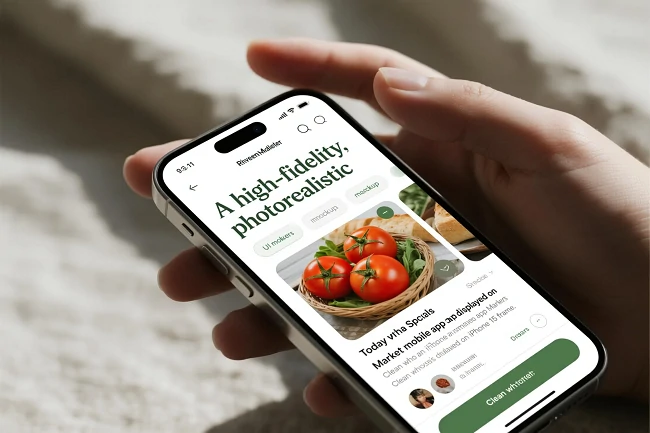
💡 Prompt: "A high-fidelity, photorealistic UI mockup of a modern Farmers Market mobile app displayed on an iPhone 15 frame. Clean white background with sage green accents. Header saying 'Riverside Market'. 'Today's Specials' carousel with high-res photos of tomatoes and bread. Minimalist navigation bar. Dribbble-style aesthetic."
6. Virtual Try-On (Fashion Editing)
💡 Prompt: "Edit the image to dress the woman using the provided clothing images. Do not change her face, facial features, skin tone, body shape, or pose. Replace only the clothing, fitting the garments naturally with realistic fabric behavior. Match lighting and shadows to the original photo."
7. Sketch-to-Realism (Image-to-Image)
💡 Prompt: "Turn this drawing into a photorealistic image. Preserve the exact layout, proportions, and perspective. Choose realistic materials and lighting consistent with the sketch intent. Do not add new elements or text."
👉 If you want to convert an image into a line drawing, you can use an online photo-to-line drawing tool.
8. Multi-Subject Product Shot
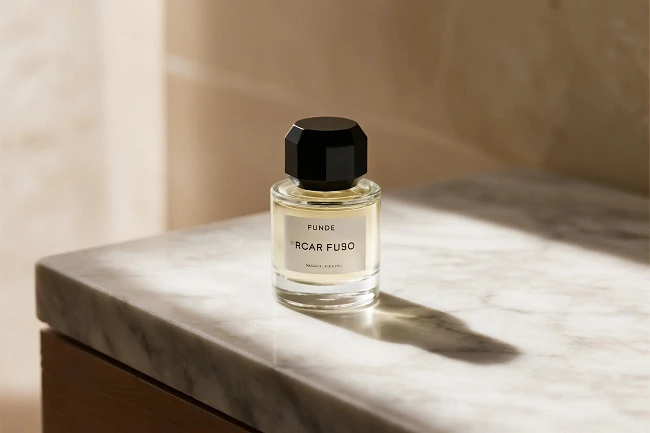
💡 Prompt: "Create a high-end product shot of a perfume bottle on a marble countertop. Soft directional studio lighting, subtle reflections, shallow depth of field, minimal background with warm beige tones. Professional e-commerce look."
9. 3D Plushie Concept
💡 Prompt: "Transform the subject into an adorable plushie-style form with soft textures and rounded proportions. Give it a cozy felt or fleece texture, simplified shapes, and gentle embroidered details. Warm pastel color palette, smooth shading, subtle seams. A charming, collectible plush toy."
10. 3D Pop-Up Holiday Card
💡 Prompt: "A premium Christmas holiday card illustration featuring a close-up of a vintage, cute teddy bear next to a Christmas tree. Soft cinematic lighting, shallow depth of field. Include the text 'Merry Christmas - may your days be merry and bright' written in an elegant, gold serif font. Photorealistic, 8k resolution."
👉️ Want to generate more photos to celebrate Christmas? Read the more detailed AI Christmas photo prompts guide.
11. Historical World Knowledge
💡 Prompt: "Create a realistic outdoor crowd scene at the Brandenburg Gate in Berlin on the night of November 9, 1989. Photorealistic, period-accurate clothing, staging, and environment."
Advanced GPT Image 1.5 Prompt Categories
While basic prompts handle everyday subjects well, GPT Image 1.5 truly shines when tasked with highly specific technical requirements. The following categories explore two of its most powerful professional capabilities: integrating perfect typography into visual designs and constructing logically rigorous layouts that require "reasoning" rather than just artistic composition.
Text Rendering & Typography
GPT Image 1.5 excels at putting text in images and serves as an excellent AI poster generator, perfect for advertising and promotions.
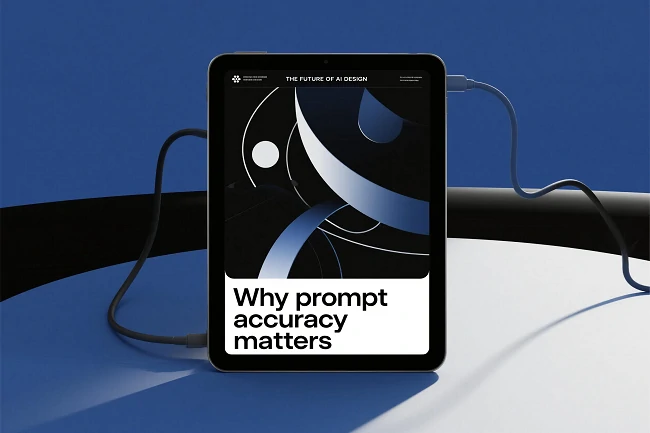
💡 Magazine Cover: "Create a modern magazine cover. Main headline: 'THE FUTURE OF AI DESIGN'. Subheadings: 'Why prompt accuracy matters'. Clean editorial layout, sans-serif fonts, high contrast."
💡 Motivational Poster: "Design a minimalist poster with the quote: 'GOOD DESIGN MAKES IDEAS OBVIOUS'. Strong typographic contrast, neutral background, professional studio look."
💡 Math Problem Solution: "Solve for x: 3(2x - 5) + 4 = 5x + 1. Step 1: Distribute the 3. Step 2: Combine like terms. Step 3: Isolate x. Solution: x = 12. Display clearly with distinct steps and final answer boxed."
💡 Business Chart: "Calculating March Revenue. A company had revenue of $48,000 in January. In February, revenue increased by 12%, and in March it decreased by 5% relative to February. What was the revenue in March? Show calculation steps and a bar chart comparison."
Logical & Structured Layouts
Use these prompts when you need to display sequential processes, data comparisons, or precise grid-based arrangements.
💡 Grid Composition: "Draw a 5×4 grid. Row 1: apple, pear, banana, grape, orange. Row 2: numbers 1-5. Row 3: office supplies. All items centered, flat illustration style."
💡 Flow Chart: "Create a simple decision flow diagram on a white background. Top box: 'Is file > 10MB?'. Arrow splits to YES (Compress) and NO (Upload). Clean rectangular boxes."
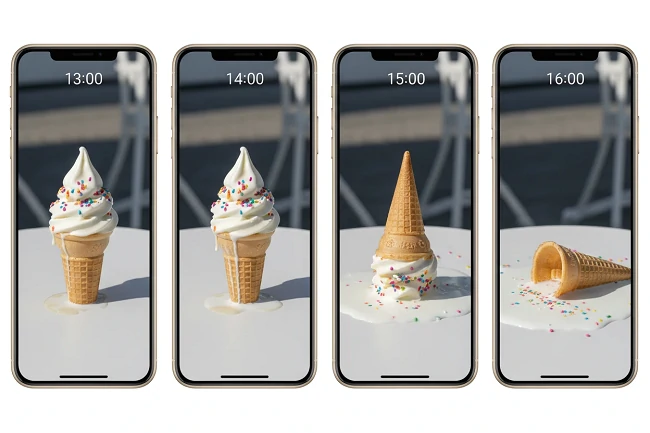
💡 Time-Lapse Panel: "Split the screen into four vertical panels showing the same ice cream on a small table in iPhone-style daylight, progressing from perfect and untouched at 13:00 to slightly melting at 14:00, nearly collapsed with a puddle at 15:00, and fully melted into a liquid pool by 16:00, leaving only the empty cone."
💡 Urban Summary Dashboard: "A hyper-realistic iPhone-daylight documentary photo inside a small U.S. municipal planning office, showing a cork board fully covered with pinned reports summarizing a 2024 U.S. city snapshot - population, housing, age trends, prices, density, and sources - captured with visible paper texture, pins, curled edges, nearby office items, medium framing, and no digital screens."
💡 Code Snippet: "Write a concise, production-ready Python 3.11+ solution: brief requirements summary, single runnable file with type hints, clean structure, validation, logging, argparse CLI (files or stdin/stdout), optional env overrides, efficient implementation, main with normal run and --self-test (6+ tests), and a short Big-O explanation."
🔥 Get GPT Image 1.5 Free Access on SeaArt AI
After learning the general guidelines for GPT Image 1.5 prompts, you can now use this model for free on SeaArt AI.
👉️ Quick Access: SeaArt AI's GPT Image 1.5 Model
1️⃣ Simply enter your prompt and click Generate to start creating.
🔑 If you want to edit an image, upload the corresponding image in the control panel and refine your prompt to make adjustments.
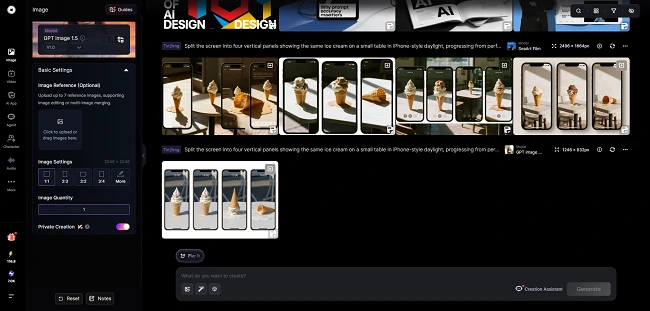
2️⃣ Once you click generate, your result will be ready in just a few seconds. If you're not satisfied, you can further optimize the prompt and regenerate the image until you achieve the desired result.
👉️ Also Read:
9 Best GPT Image 1.5 Alternatives: Free, Paid, and Open-Source Options Tested
GPT Image 1.5 vs Nano Banana Pro: The Ultimate Comparison Review
Conclusion
In short, this GPT Image 1.5 prompt guide equips you with everything needed to turn ideas into precise, production-ready visuals - from clean layouts to advanced edits and typography. Now it's time to put theory into practice: head to SeaArt AI, enter your prompts, and start creating images with GPT Image 1.5 instantly, all in one streamlined creative workflow.
Related Articles
Wan 2.6 Prompt Guide: How to Master AI Video Generation
Gemini 3 vs ChatGPT: Which AI Model Wins in 2025?

Why & How to Fix ChatGPT Image Generator Not Working
Gemini Prompts for the Flamengo Jersey | AI Football Photos