Generate
History
Private Creationvip-icon
Details
MacBook Photo Filter
Original

MacBook Photo Filter

1.7K
0
2.5K
2026-01-05 04:20:31 Update

Rating & Review

4.5 /5
0 Ratings

Not enough ratings or reviews received yet

no-data
No data available

Create 3 Shot MacBook Selfie Set with MacBook Photo Filter

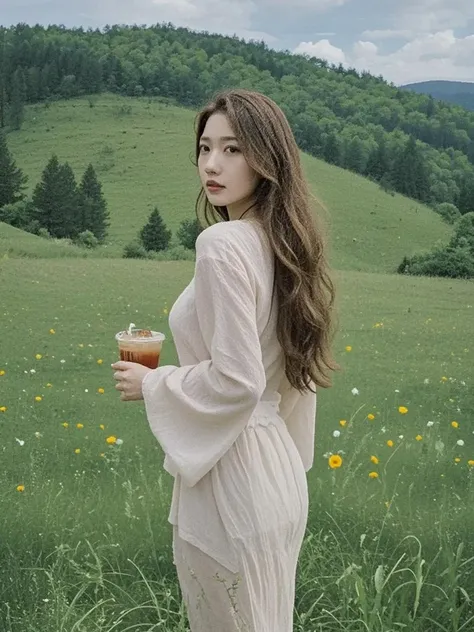
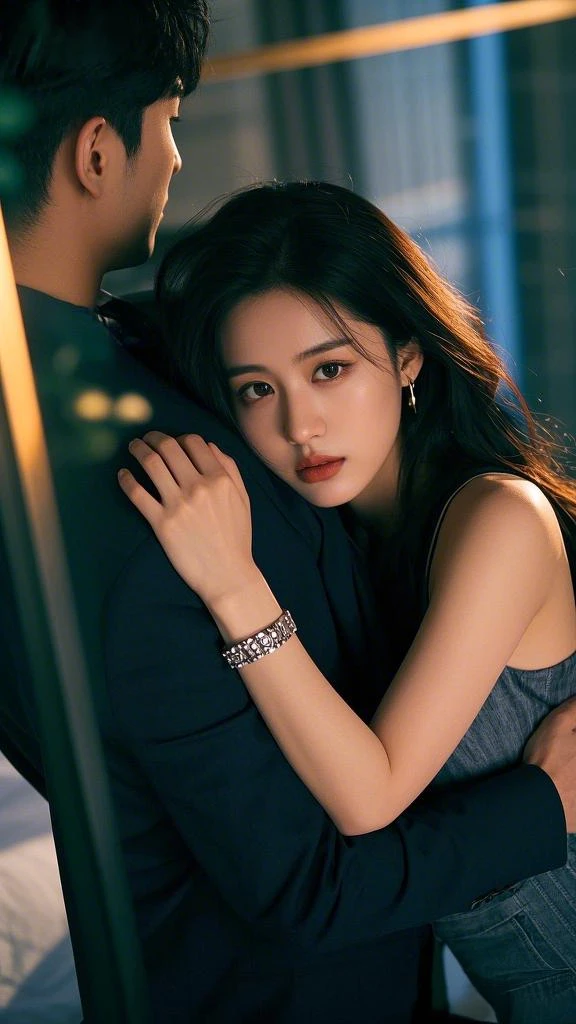
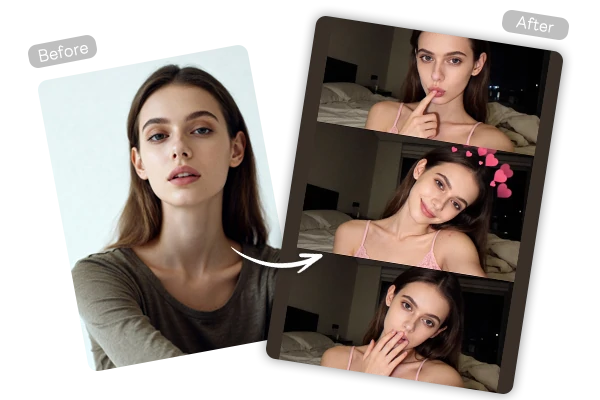
Create a believable laptop selfie set with SeaArt AI MacBook Photo Filter. Upload one photo and get a 3-photo burst with true MacBook camera proportions and clean, IG-ready style.

AI Filter

Upload One Photo, Get a 3 Shot Burst

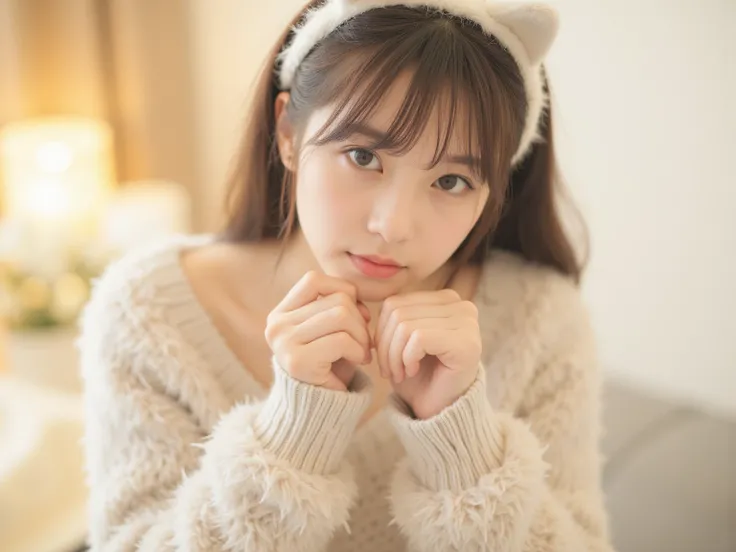
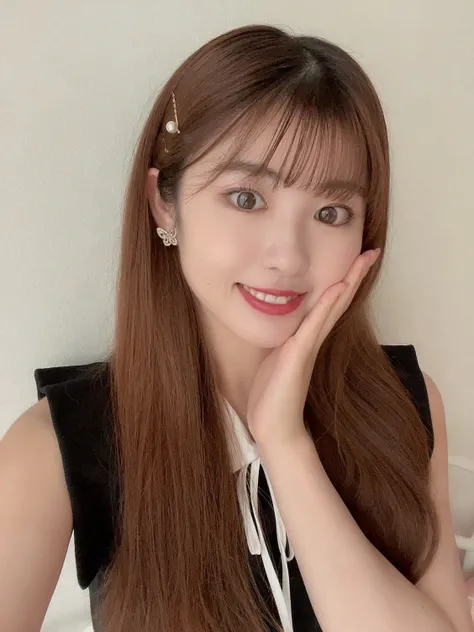
Upload one portrait and AI image generator creates three coordinated frames that feel like a true laptop burst, not copy-pasted duplicates. Expect small, natural variations while keeping identity and the “MacBook photo filter” vibe consistent across the full set.

AI Selfie

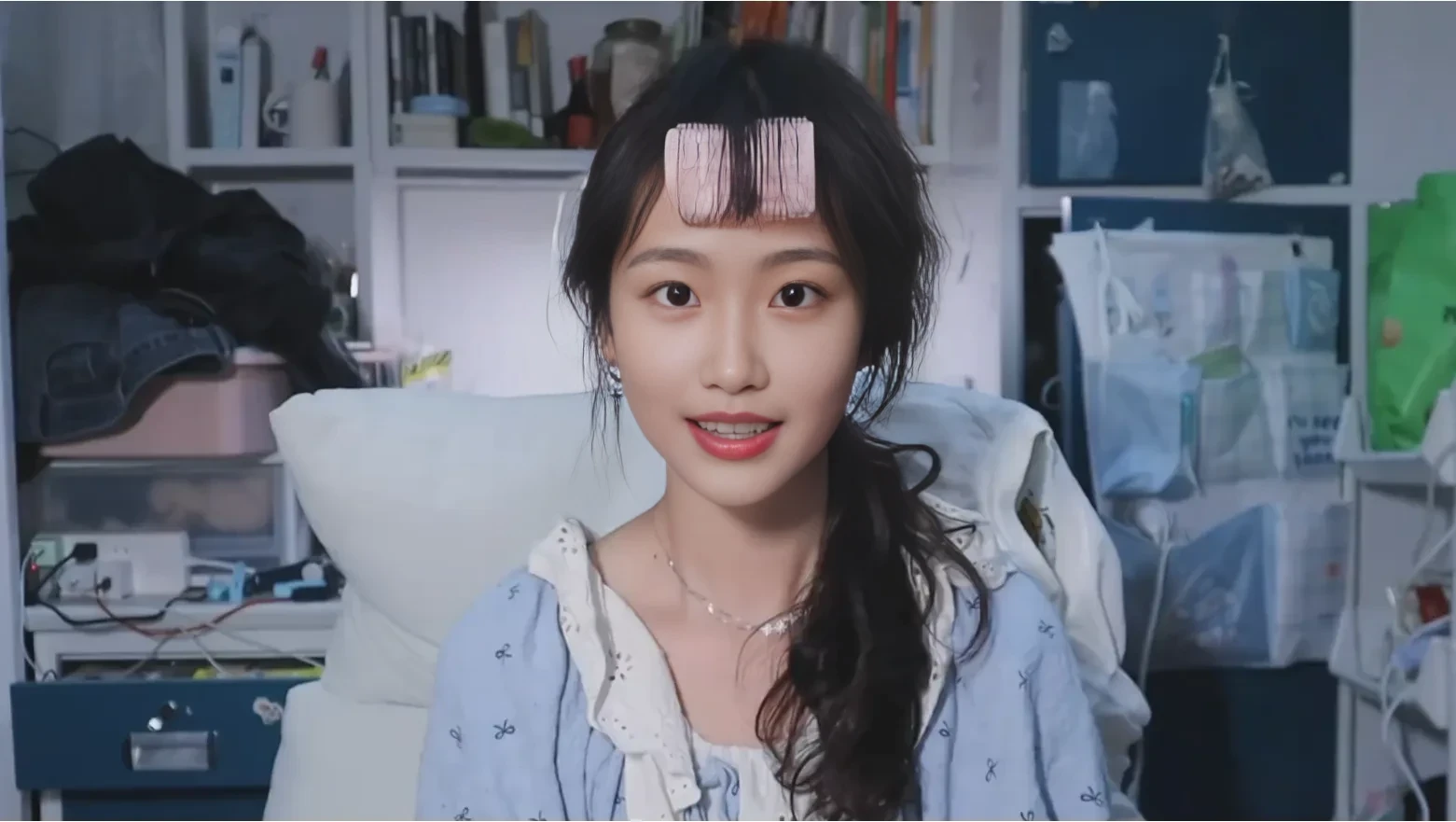
Nail the Soft Webcam Texture and Indoor Lighting

This isn't sharp phone HDR. The rendering of MacBook photo filter is tuned for softer edges, restrained color, and believable low-light balance where the face stays clear and the background sits slightly dimmer. For more stylized looks, explore AI photo filter options while keeping the same subject.

MacBook Photo

Post a Cohesive 3 Photo Set Anywhere

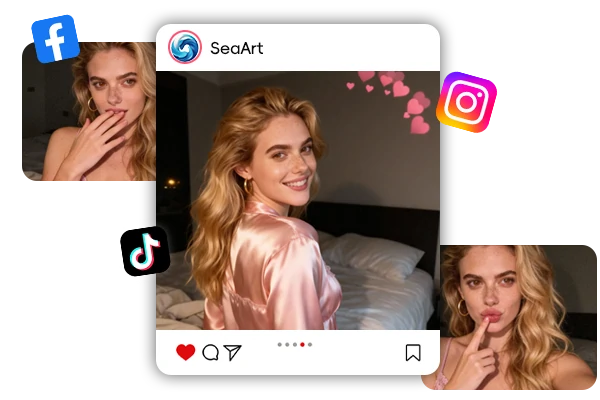
Download your three images and use them as an Instagram carousel, story sequence, dating profile refresh, or creator pack. The key is consistency: matching tone, framing, and “laptop cam” feel across all shots. For motion content, pair the same vibe with AI video effects to keep photos and short clips aligned.

How to Create MacBook Photo Filter Shots?

Step1: Upload an Image

Use a sharp, well-lit photo with a visible face and minimal blur for best realism.

Step2: Generate the 3 Shot Burst

Click generate to produce three coordinated frames with consistent lighting and webcam texture.

Step3: Preview and Save

Save the set and post as a carousel, story sequence, or updated profile photos.

FAQs About the MacBook Photo Filter

collapse

What is MacBook Photo Filter, and what does it generate?

MacBook Photo Filter is an AI image tool that turns one uploaded photo into a 3-photo burst designed to mimic a real MacBook webcam selfie. Instead of a single overlay, it recreates the softer lens feel, restrained color, and casual indoor lighting while keeping your facial likeness consistent across the set.

expand

What kind of photo works best for a realistic MacBook camera look?

Use a clear, front-facing or slightly angled portrait with good lighting and minimal blur. Avoid heavy filters, harsh shadows, sunglasses, face coverings, and extreme angles—these can reduce likeness and make the webcam styling less consistent. A simple background helps keep the room lighting believable.

expand

How is this different from typical macbook camera filters or simple presets?

Many macbook camera filters are single-frame color presets. This tool focuses on the “webcam capture” qualities—edge softness, natural contrast, and a cohesive 3-shot burst that feels like consecutive frames. That consistency matters for carousels, story sequences, and profile sets.

expand

Can I use it as Webcam filters for streaming or live video?

The output is a set of photos, not a live camera overlay. If you want the same vibe for motion content, pair your photos with AI video effects for short clips, reels, or animated posts.