

How to use Large Language Models at SeaArt
To use DeepSeek, ChatGPT, Claude or qwq-plus you can click AI Character on the left side of the menu if you are using computer at SeaArt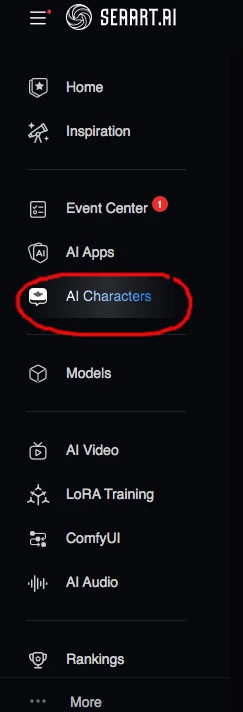
Thereafter choose the left most AI assistant 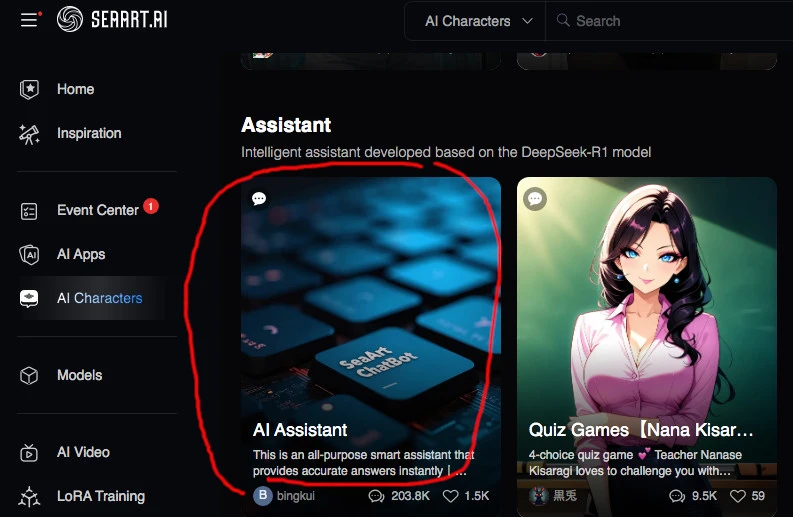
Choosing the Large Language Model and Settings
After choosing the AI Assitant above you will be shown this page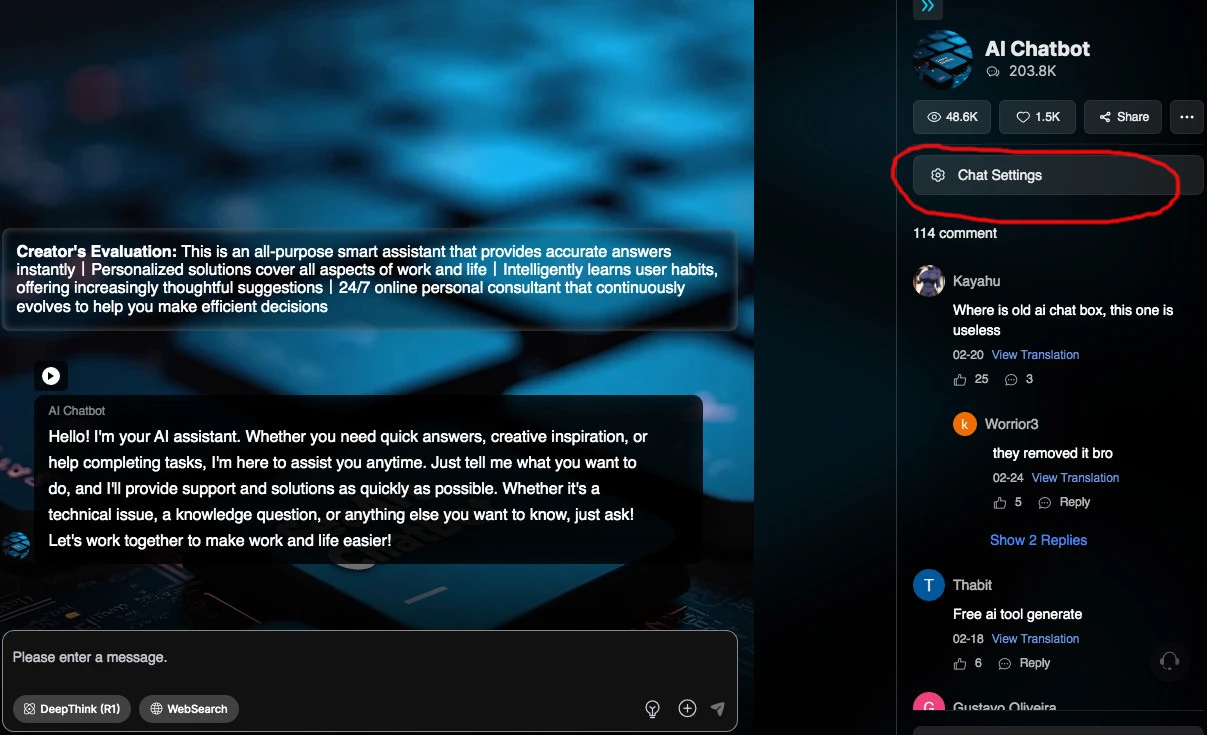
Choose Chat Settings
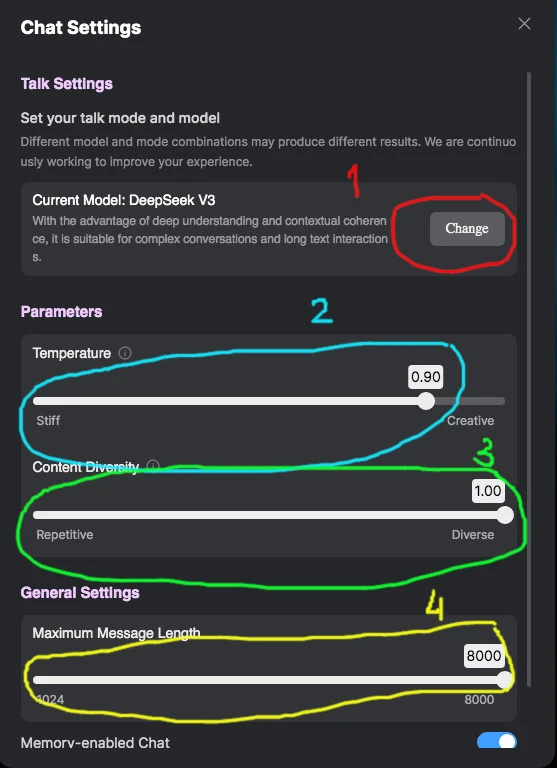
1. Choose your model: DeepSeek V3, DeepSeek R1, ChatGPT 4, Claude 3 Haiku or qwq-plus (For beginner, choose DeepSeek R1)
2. Set your prompt adherence (For beginner, just leave it as default)
3. Set your Content Diversity (For beginner, just use default)
4. Set your Maximum Message Length, this could influence stamina usage (For beginner, use default)
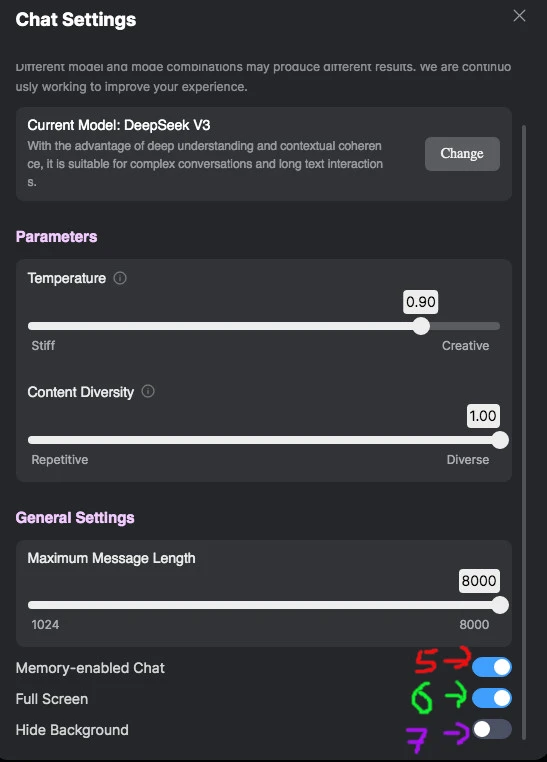
After scrolling down you will find additional options:
5. Memory-enabled Chat. I recommend to switch on this toggle.
6. Full Screen (up to you)
7. Hide Background (up to you)
Please Close the setting and you can now start typing your prompt at the marked area 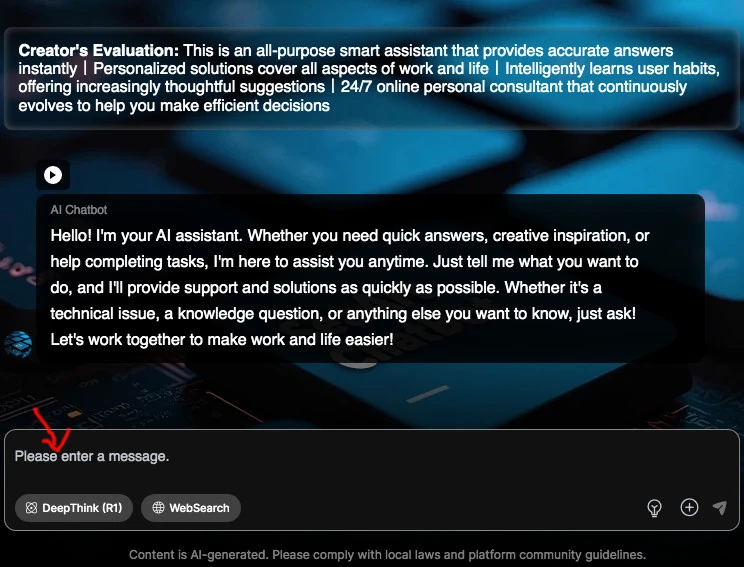
Usage of stamina depend on how long the model use the GPU. Good luck and have fun !